
Every HDRI gets a real sun.
Sol finds the sun in your HDRIs, paints it out and puts it back as a real sun light. Sharp shadows, even from clipped HDRIs, and a sun you can turn, dim and recolour.
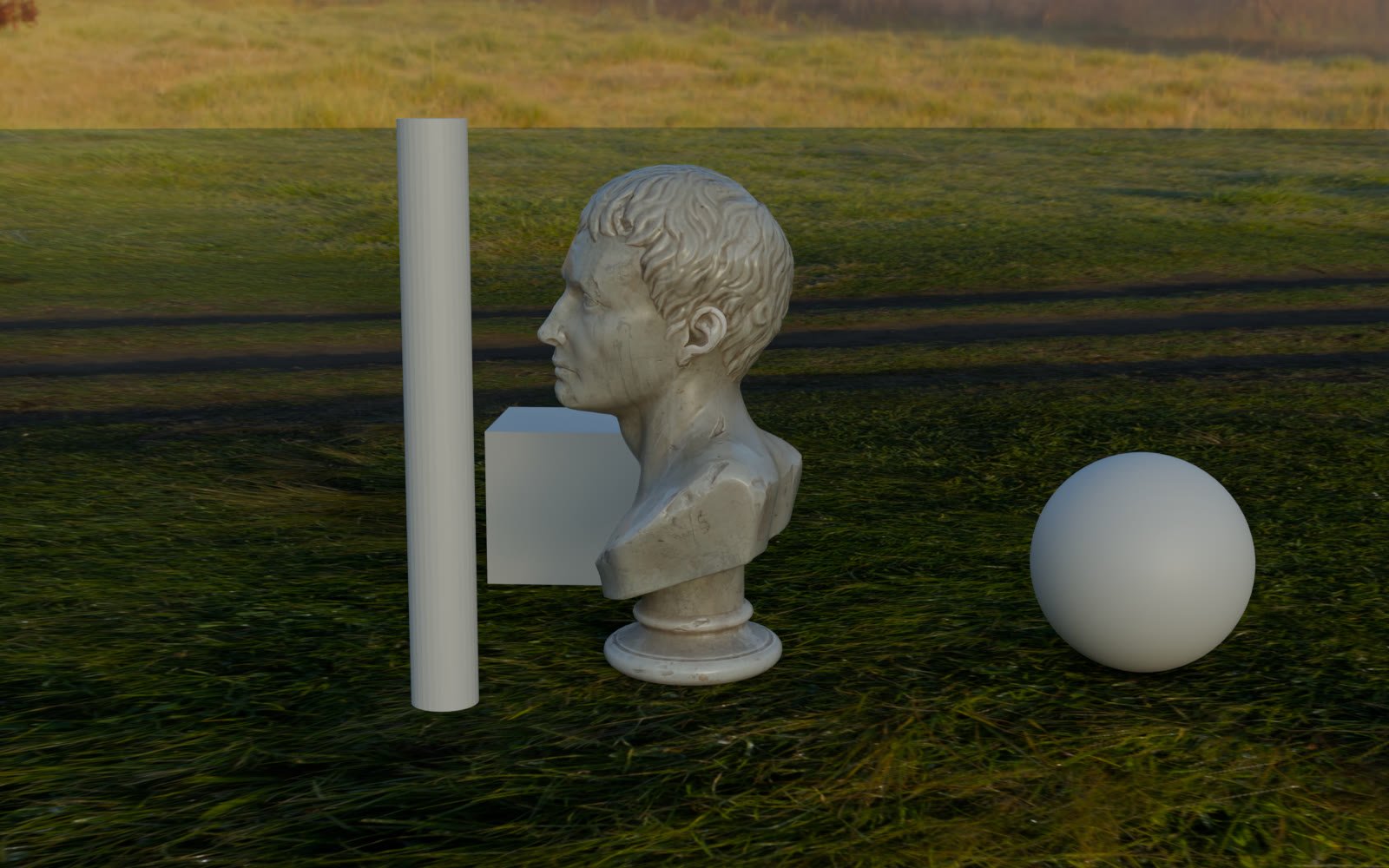
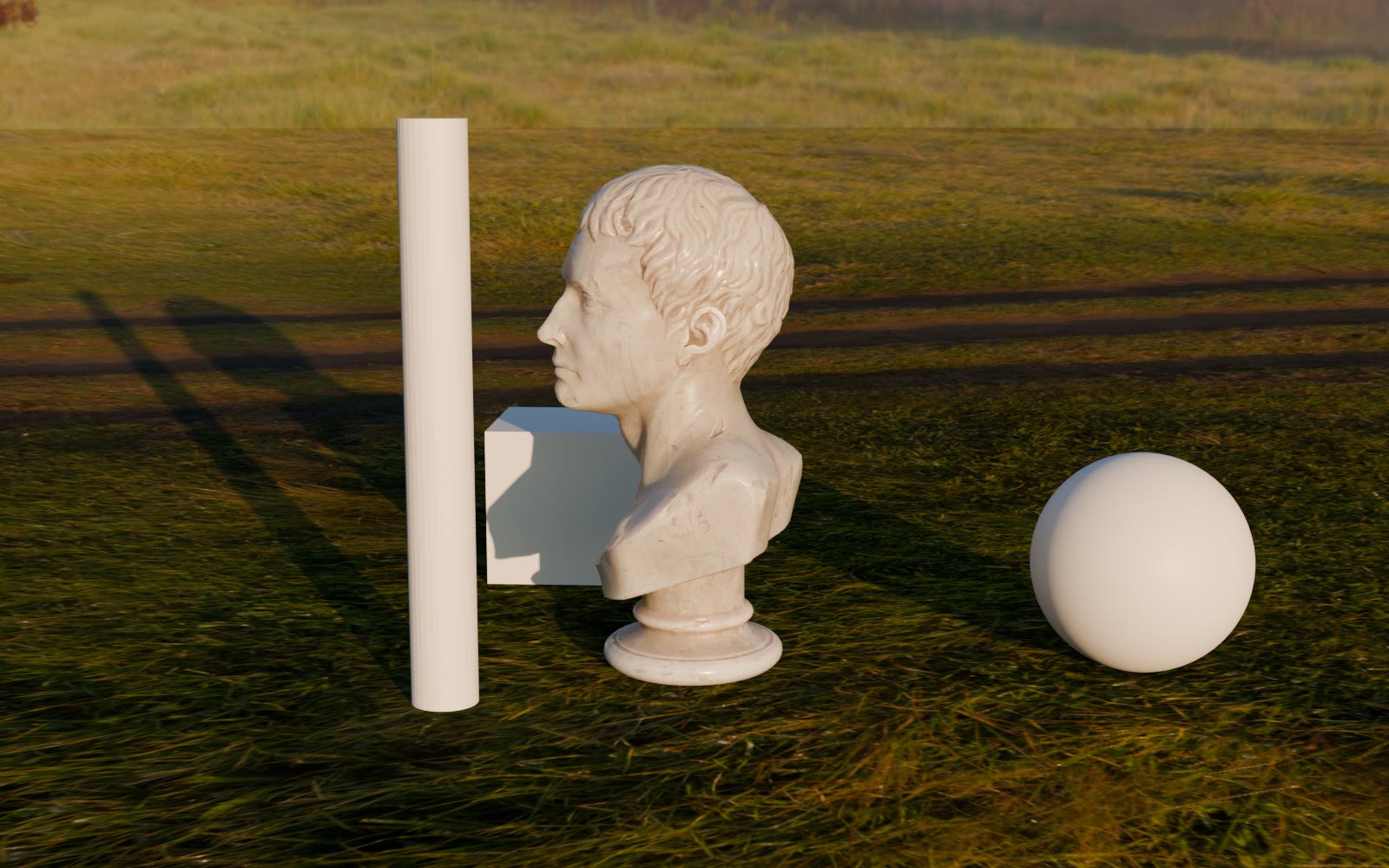 CLIPPED HDRISOL · REAL SUN
It finds the sun. You keep the HDRI.
Add an HDRI and Sol analyses it once: where the sun is, how strong and how warm it is, and how big it looks. It paints the sun out and adds a sun light in its place. The sky, reflections and bounce light stay as they were.
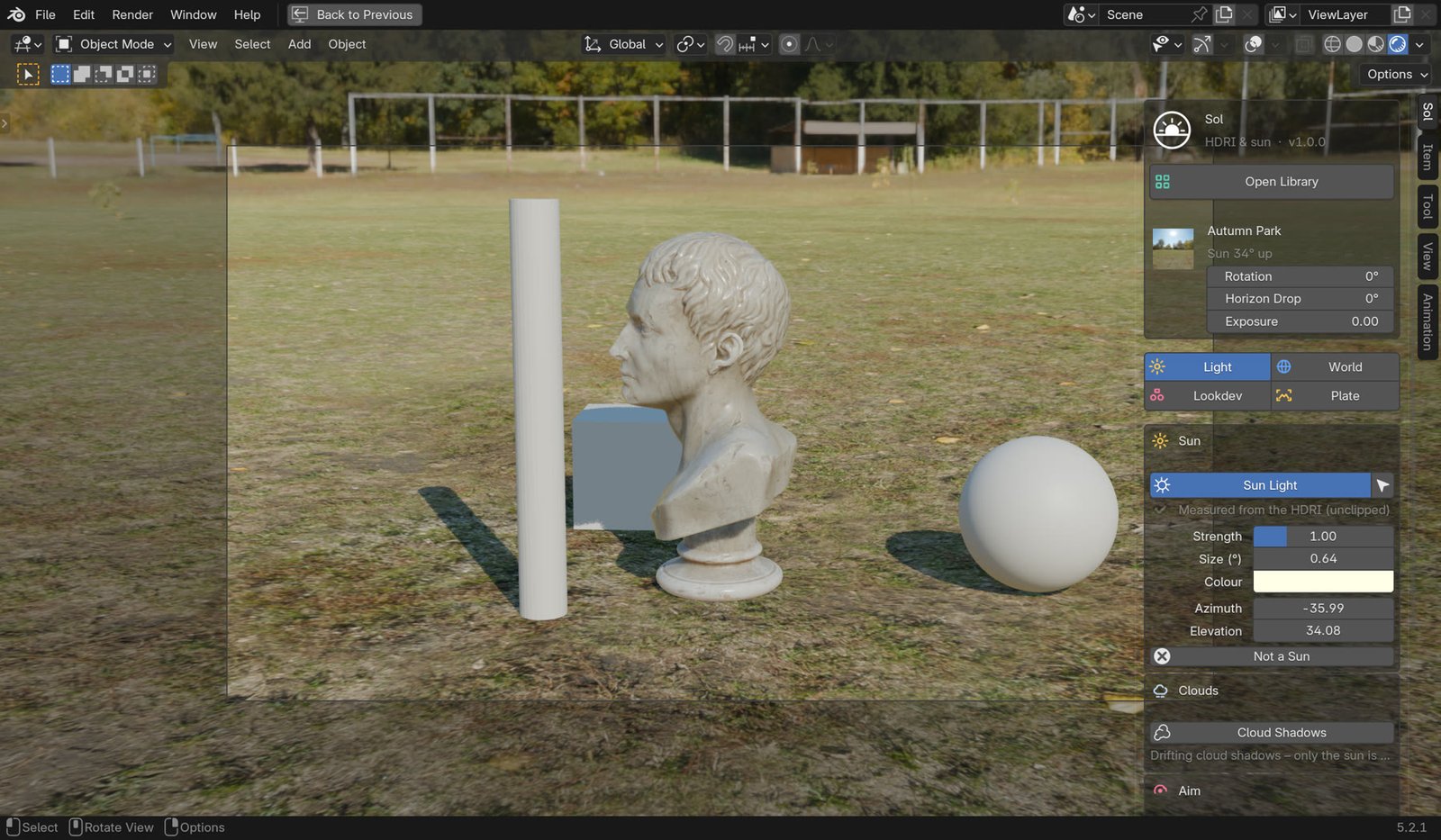
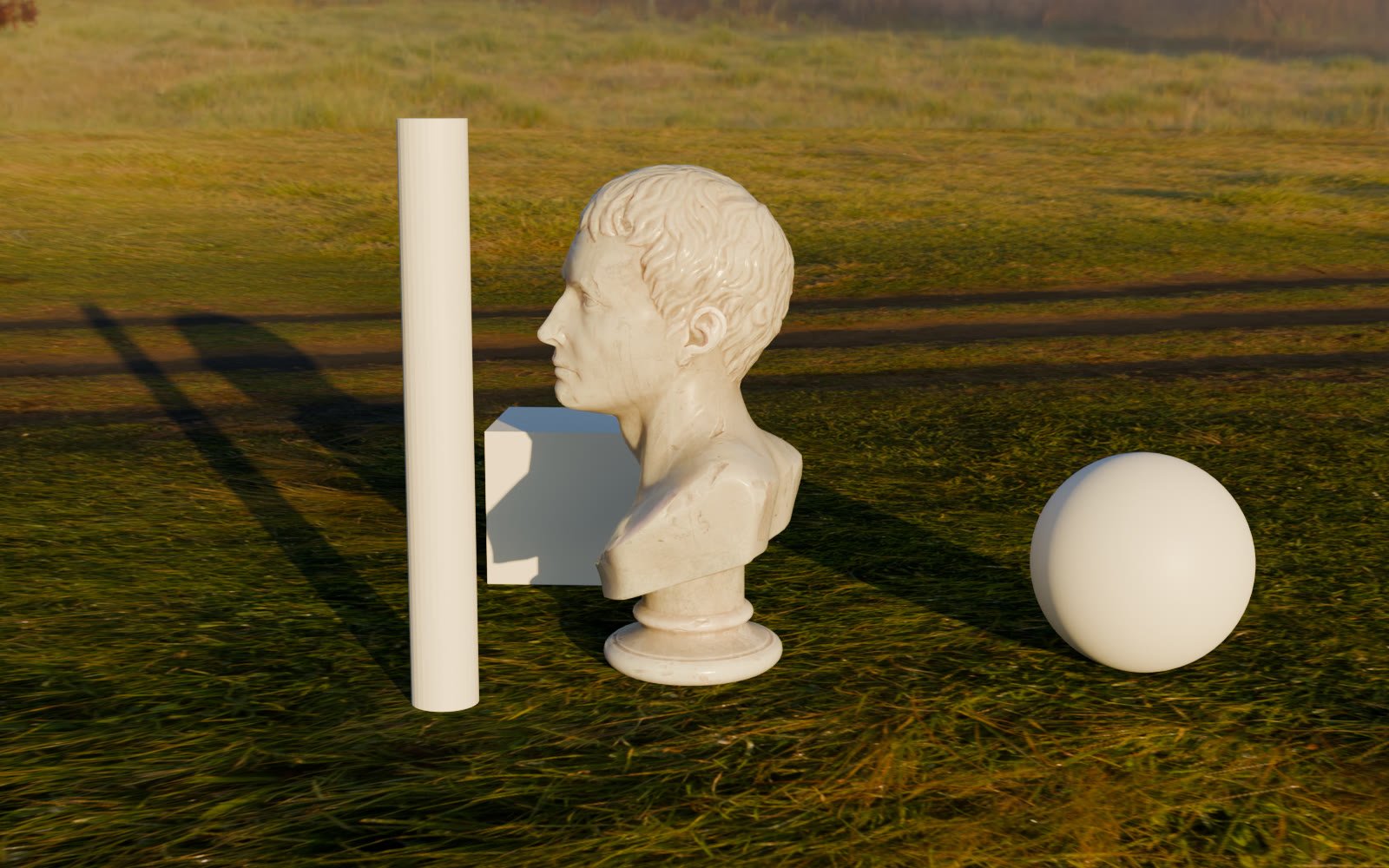
Autumn Park from Poly Haven. Sun found 34° up and turned into a sun light, measured from the HDRI.
Turn the HDRI. The shadows follow.
The sun stays locked to the HDRI. Rotate the world and the light, the shadows and the sky turn together.
- Strength, size and colour start from what was measured.
- Aim the sun at a point in the scene.
- Clipped suns are rebuilt from the sky around them.
- Interiors and studios: lamps and windows become real lights.
Spruit Sunrise, turned 360°. One slider. Sun and sky move together.
Your HDRIs. Sorted by light.
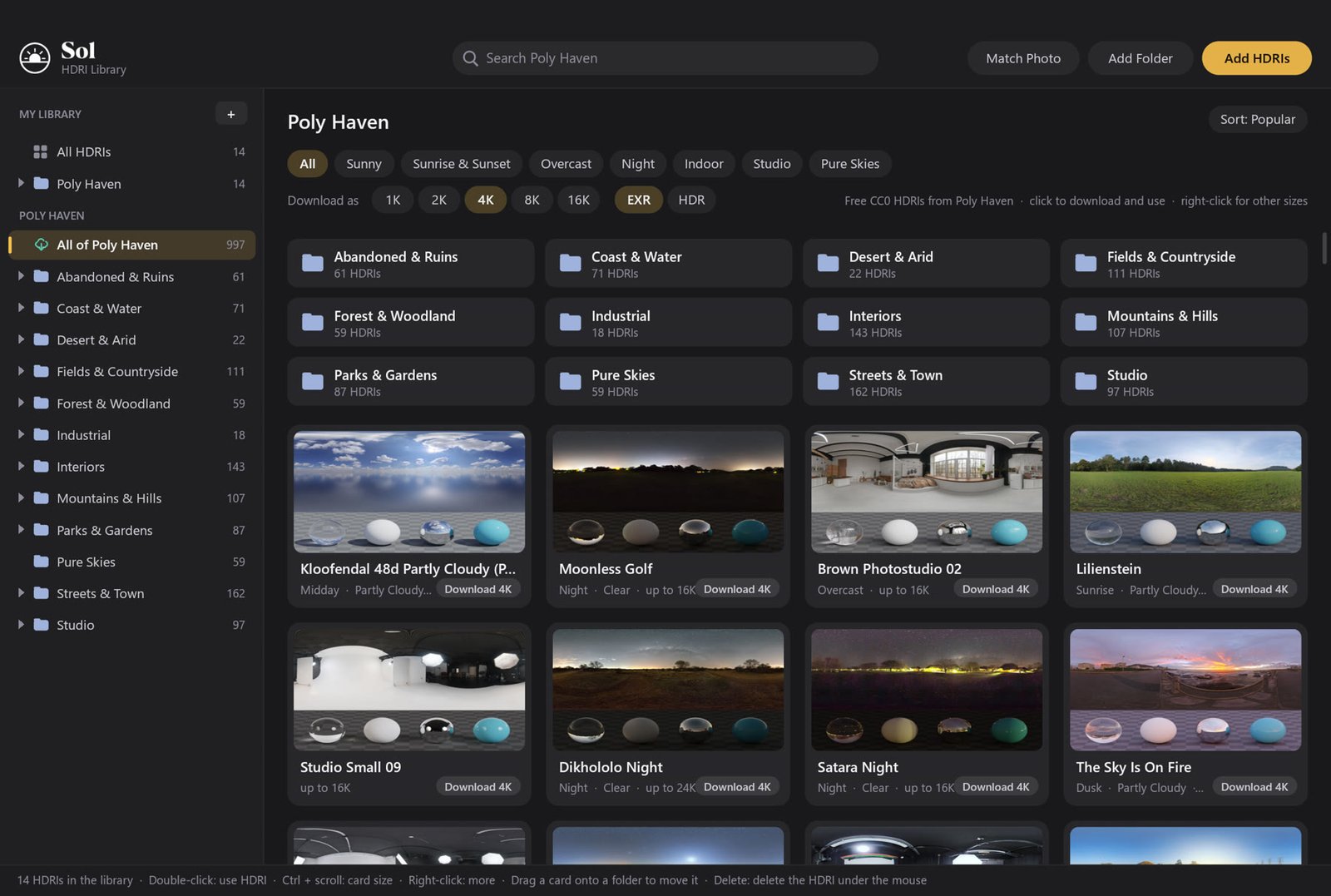
A full library window inside Blender. Folders and sub-folders, search, and filters by light: low sun, high sun, warm, lamps or no sun. Every card shows where the sun is before you click. Sol can keep the files on disk in the same folders as the library.
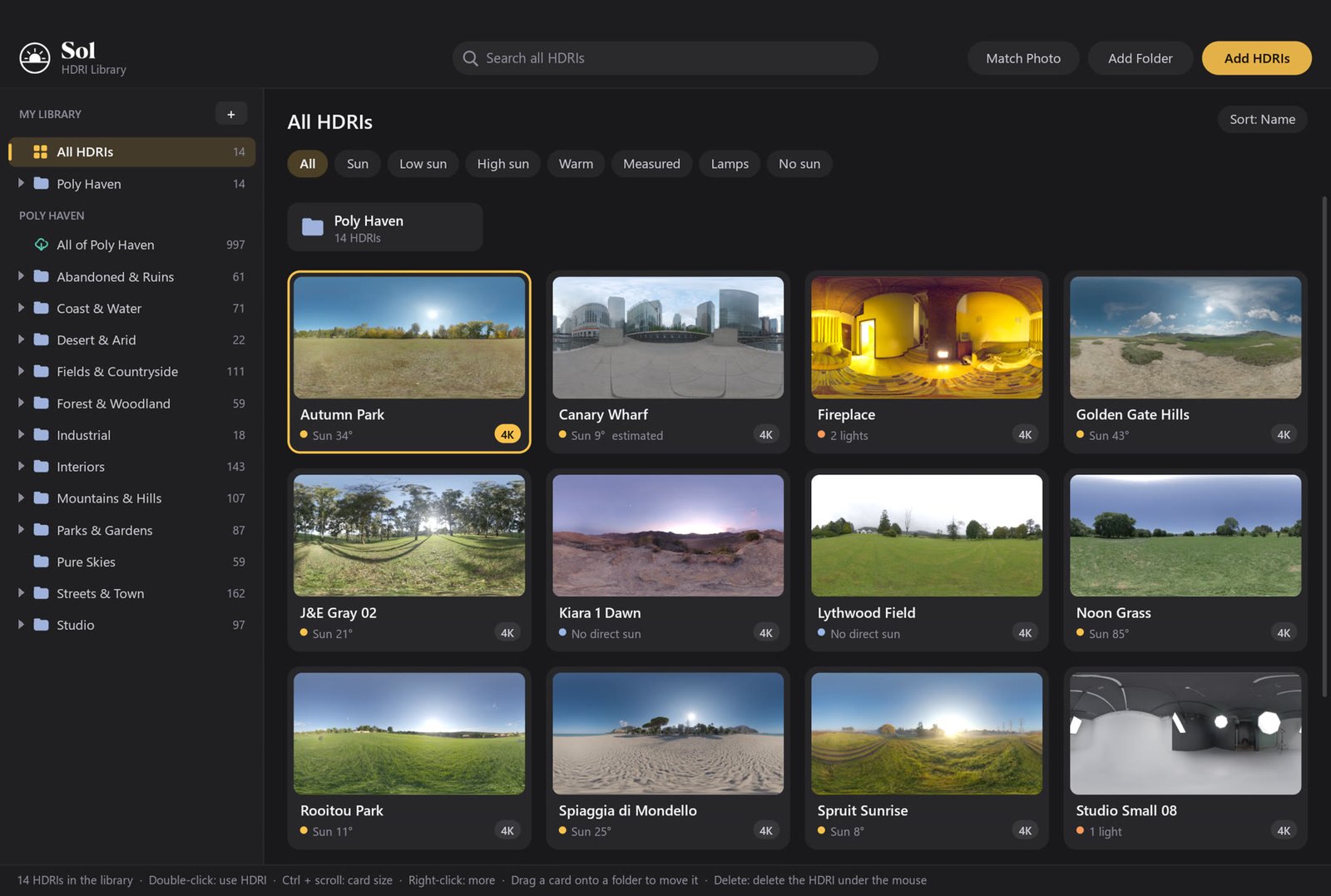
Double-click to use an HDRI. Drag cards into folders. Match Photo finds the HDRI that fits a photo.
Poly Haven, built in.
Browse every free HDRI on Poly Haven by category and light, pick a resolution and download. Downloads land in the right folder of your library and are analysed straight away.
Stand on the ground. Cast a shadow.
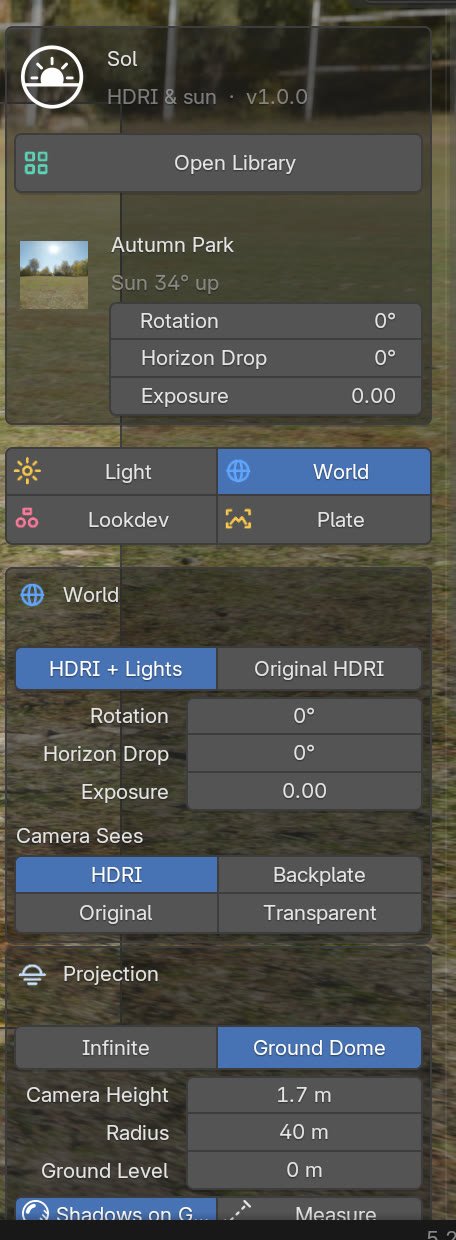
Ground Dome projects the HDRI onto a floor and a dome, so objects sit on the ground and the sun shadow falls on the HDRI itself.
- Camera height and radius to match the shot.
- Measure something you know the size of.
- Camera sees the HDRI, the original, a backplate or nothing.
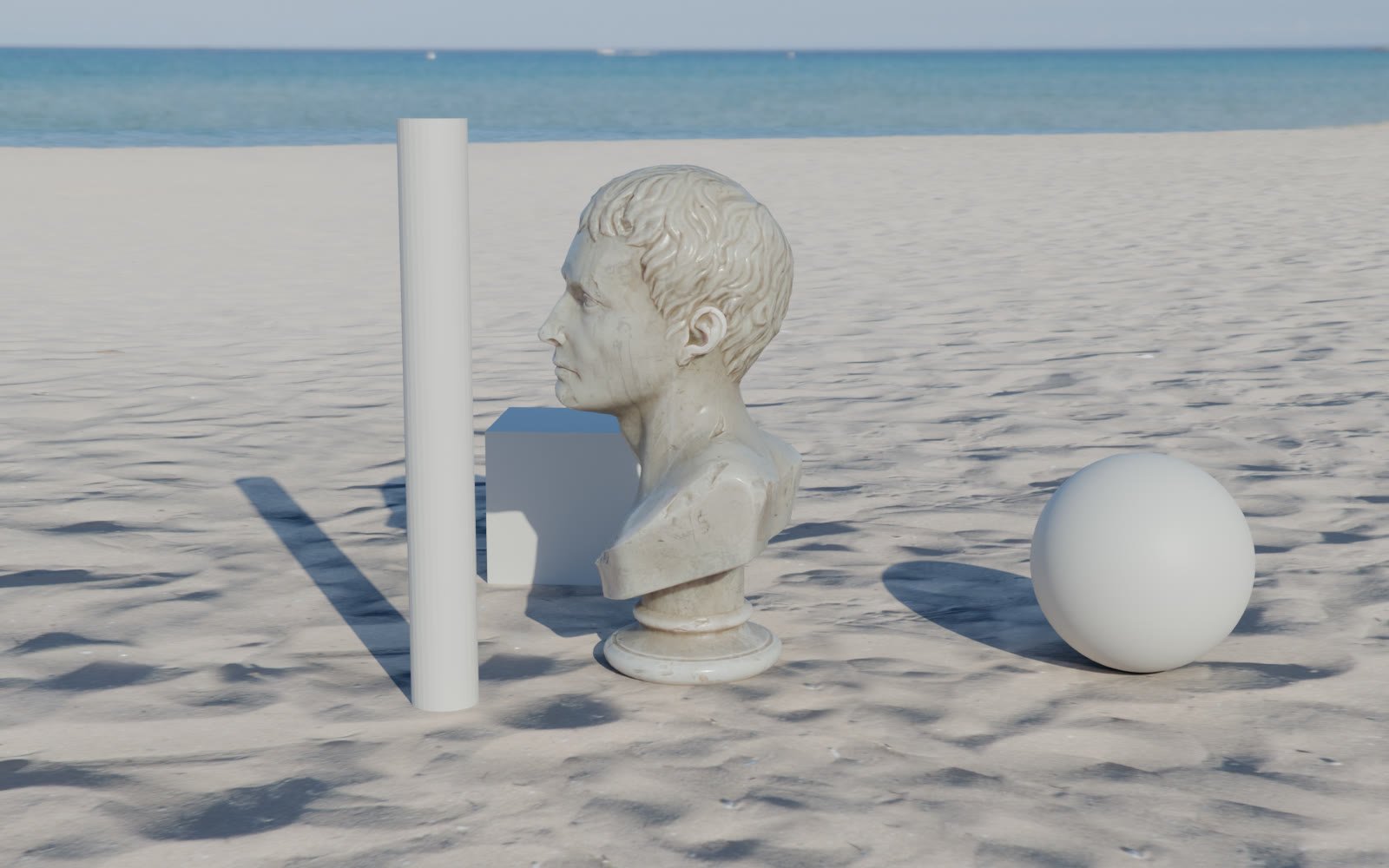
Spiaggia di Mondello on a ground dome. The shadows land on the sand.
Cloud Shadows on. The light comes and goes, like a real afternoon.
Clouds that drift.
Soft cloud shadows move across the scene. Only the sun is shadowed, the HDRI keeps its own sky. Set cover, density, size, softness and wind. Renders in Cycles.
Grey ball, chrome ball, chart.
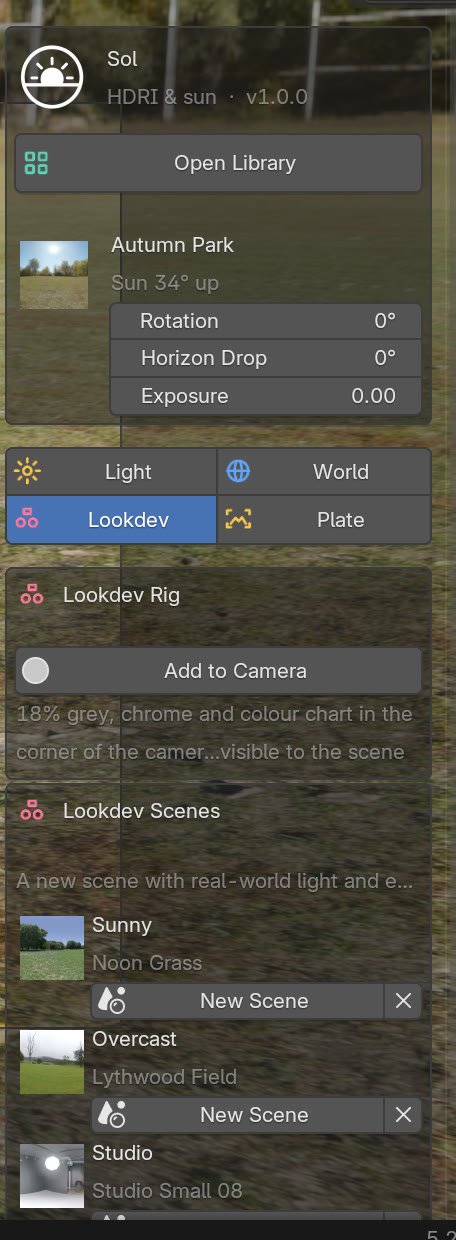
Add an 18% grey ball, a chrome ball and a colour chart to the corner of the camera, visible only to the camera. Or start a ready lookdev scene with real-world light: Sunny, Overcast or Studio.
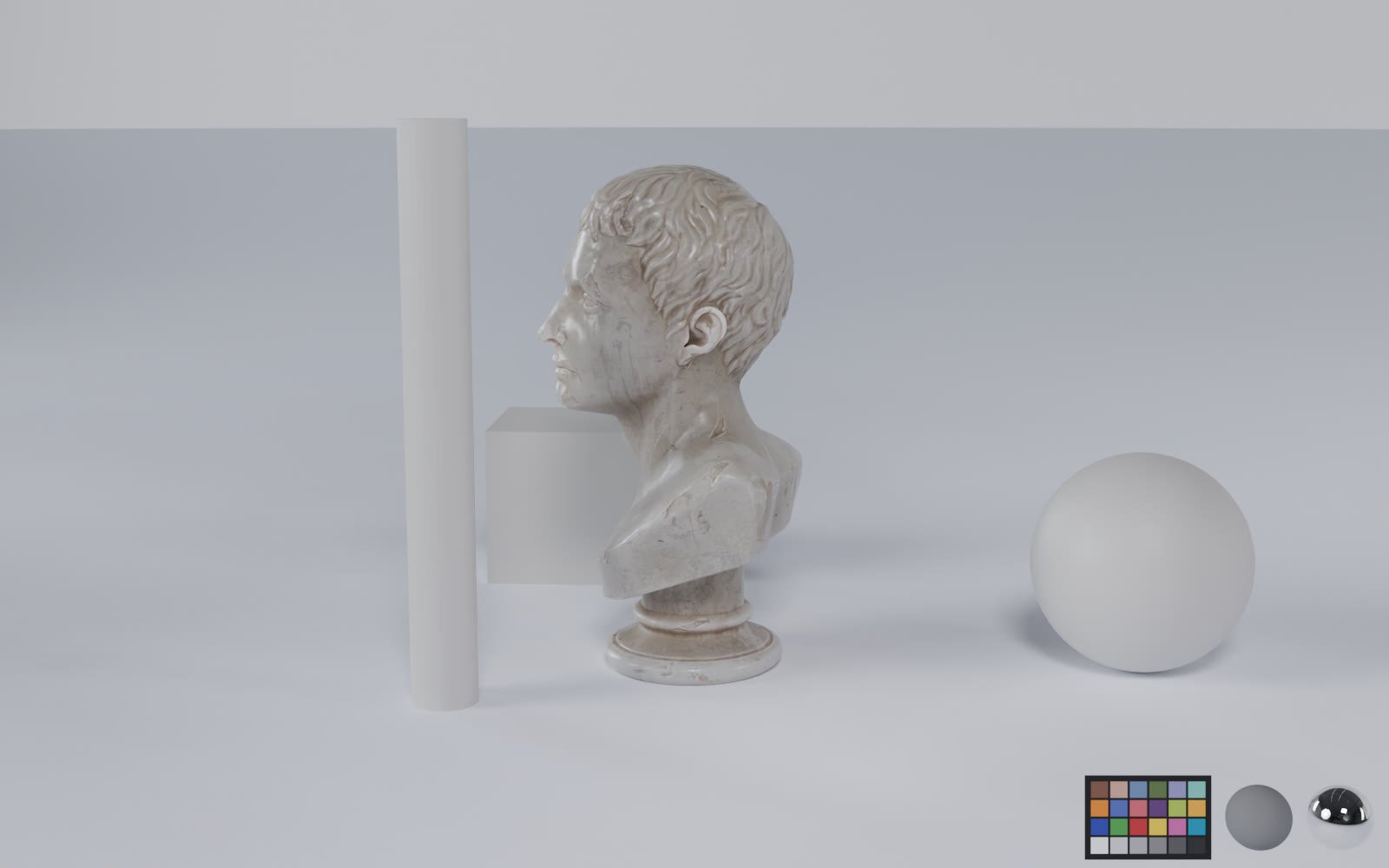
Studio lookdev scene. One click from the Lookdev tab.
Four tabs. All of it.
Light, World, Lookdev and Plate. The same panel sits in the 3D view sidebar and in the World properties, so it is there when you need it.
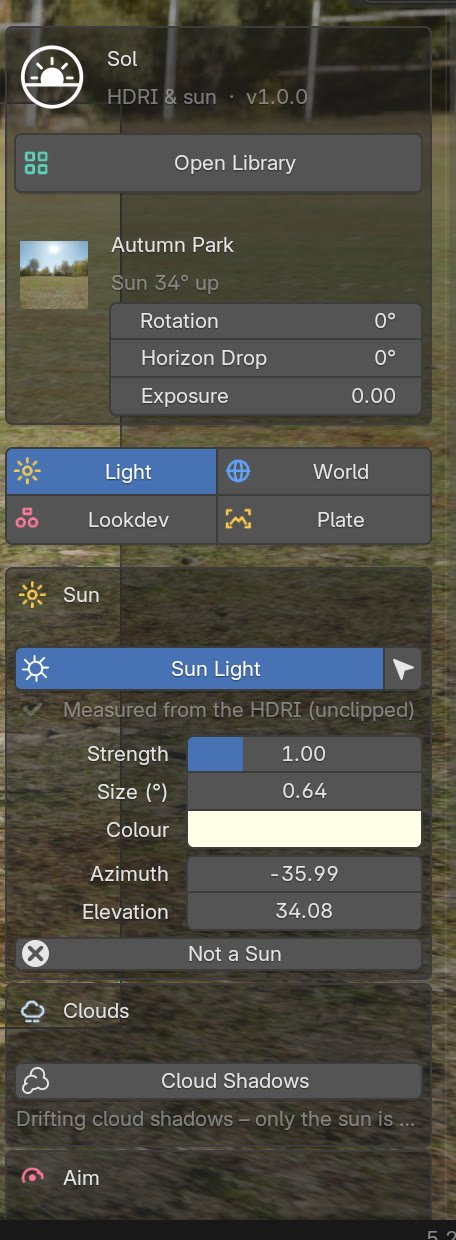
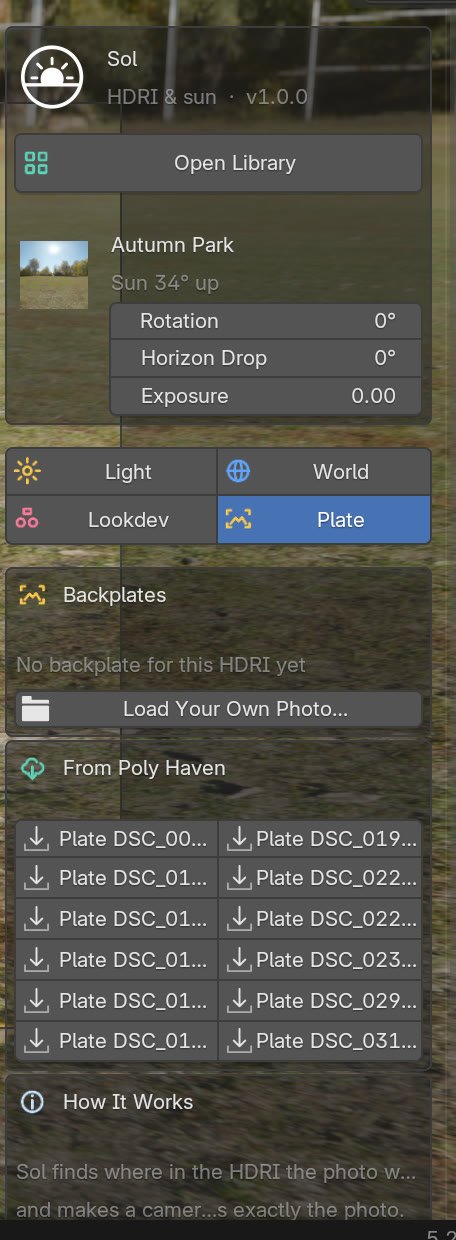
Backplates and real-world light.
Load a Poly Haven backplate or your own photo, and Sol finds where in the HDRI it was taken. Real-World Values give the sun and sky physical intensities with a matching exposure, and Sol can pass the horizon colour to Oris as fog.
Sunrise. Sun 8° up.
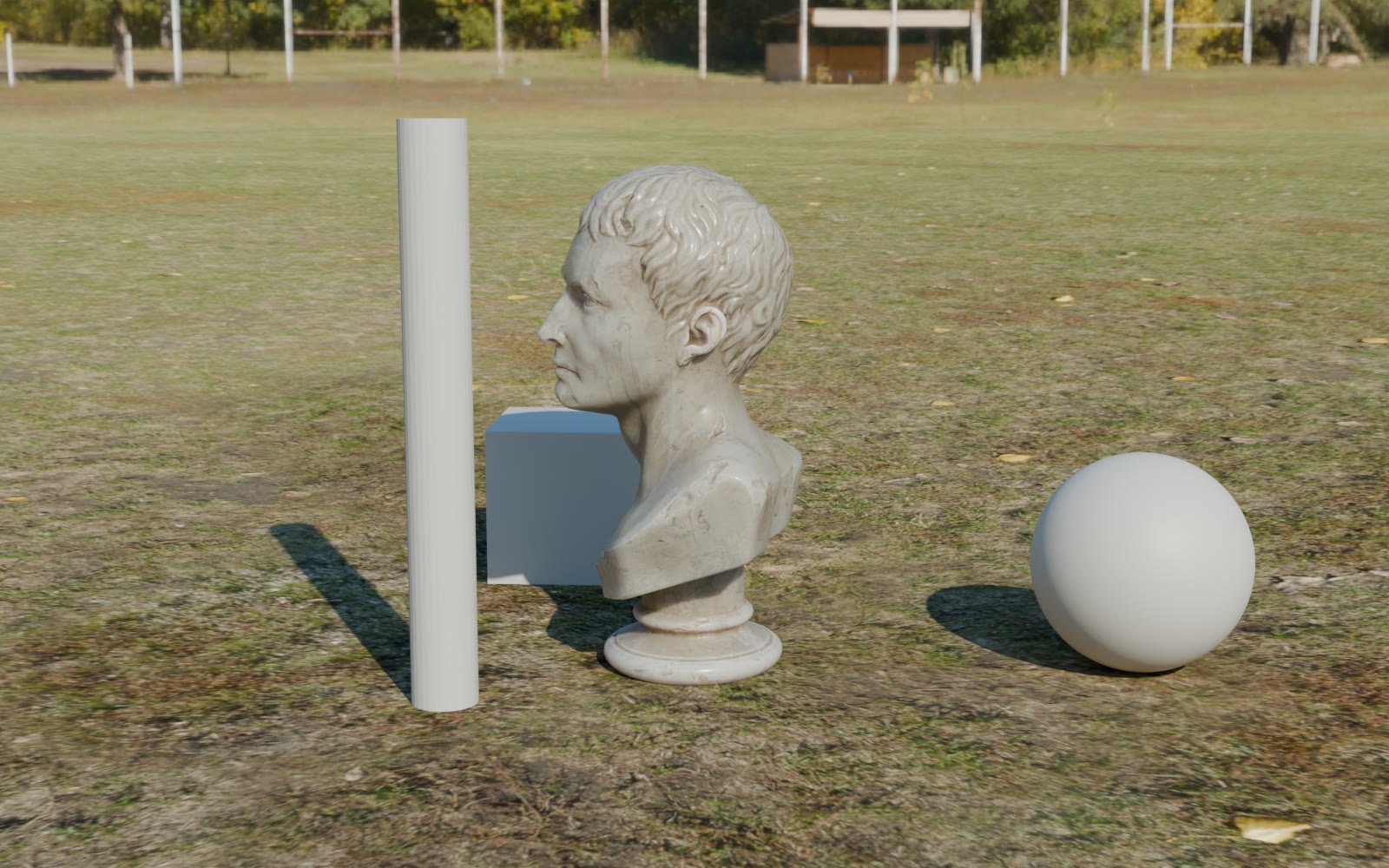
Afternoon. Sun 34° up.
Beach. Sun 25° up.
One price. All of it.
No subscription. Buy once and get every 1.x update.
Per artist · on Superhive
- Sun found, painted out and turned into a real sun light
- Clipped suns rebuilt, lamps in interiors turned into lights
- HDRI library with folders, search and light filters
- Poly Haven browser with downloads
- Ground projection, cloud shadows and lookdev rig
- Backplates, photo match and real-world values
- All 1.x updates included
One order, as many seats as you need.
Superhive sells several seats in a single order, so a studio buys one seat per artist at the same price. Questions go straight to me at hello@mulk.no.
Before you install.
- Blender
- 4.2 or newer
- Engine
- Cycles and EEVEE (cloud shadows: Cycles)
- HDRIs
- EXR and HDR
- Install
- Blender extension (.zip)
- Licence
- GPL-3.0-or-later
Does Sol change my HDRI files?
No. The sun-free copy, the thumbnail and the analysis are kept in the library folder. Your originals stay where they are, unless you ask Sol to copy them into the library.
What if it picks the wrong light?
Click Not a Sun, or Find the Sun Anyway, or aim the sun yourself. What you set is saved with the HDRI in the library.
Does it work with interiors and studios?
Yes. When there is no sun, Sol looks for lamps and windows instead, paints them out and adds real lights in their place.
How long does the analysis take?
It runs once per HDRI in the background while you keep working, and the result is saved in the library.
Do I need internet?
Only for the Poly Haven browser. Everything else works offline.
Check out more add-ons.
Tools I build for my own work as a 3D artist, now available for yours.
 Tabby · Out now · $19
The ultimate add-on organizer.
Every add-on tab from the N-panel in one searchable hub. Group it, colour it, dock it or float it.
 Fetch · Out now · $9
Every update, one click.
Checks all your add-ons and extensions from Superhive, Gumroad and Blender Extensions, and updates them from one place.
 Oris · Out now · $49
Real lens, ray traced in Cycles.
Traces every camera ray through a real multi-element lens, with dirt and rain on the glass.