
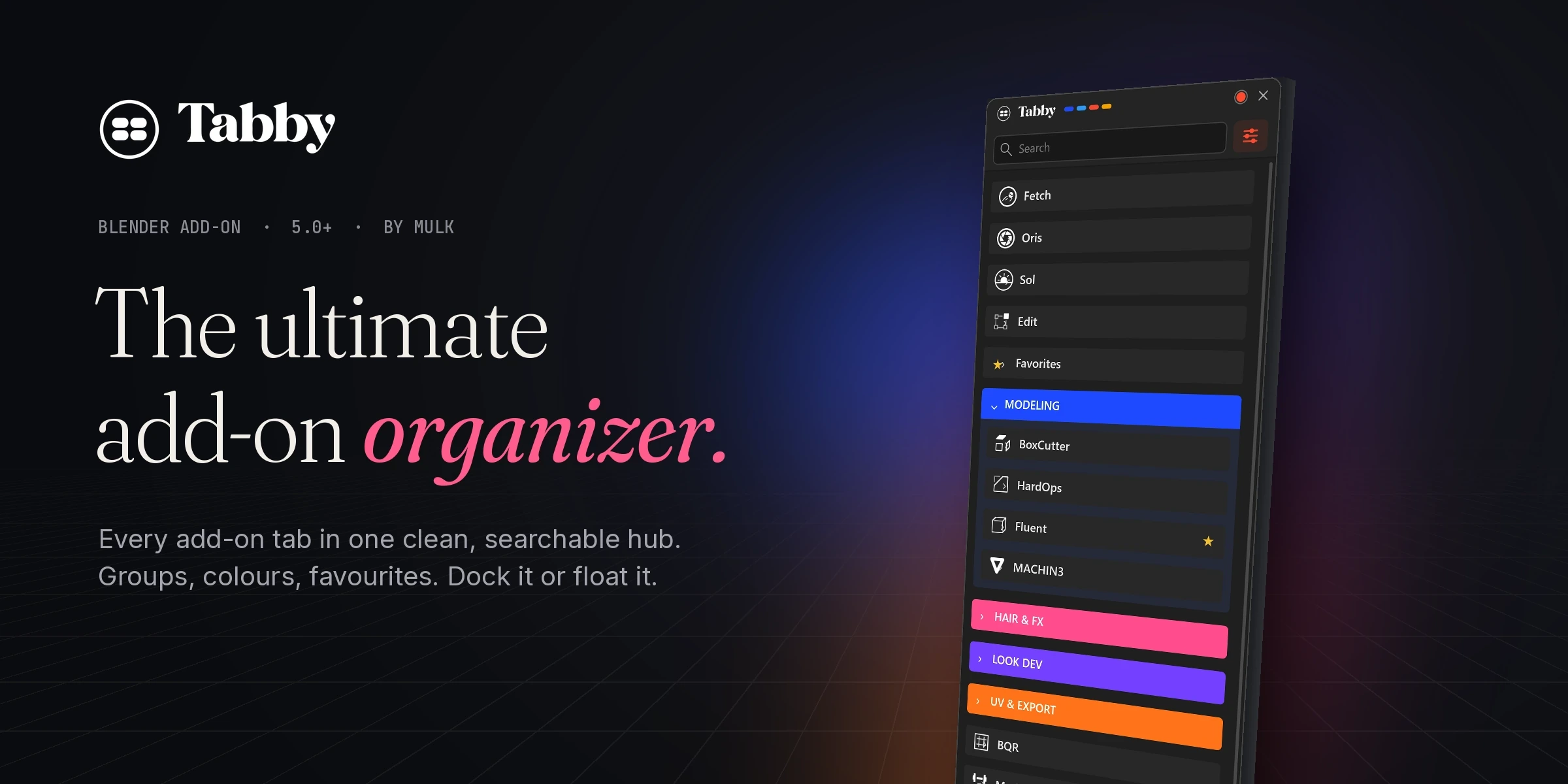
The ultimate add-on organizer.
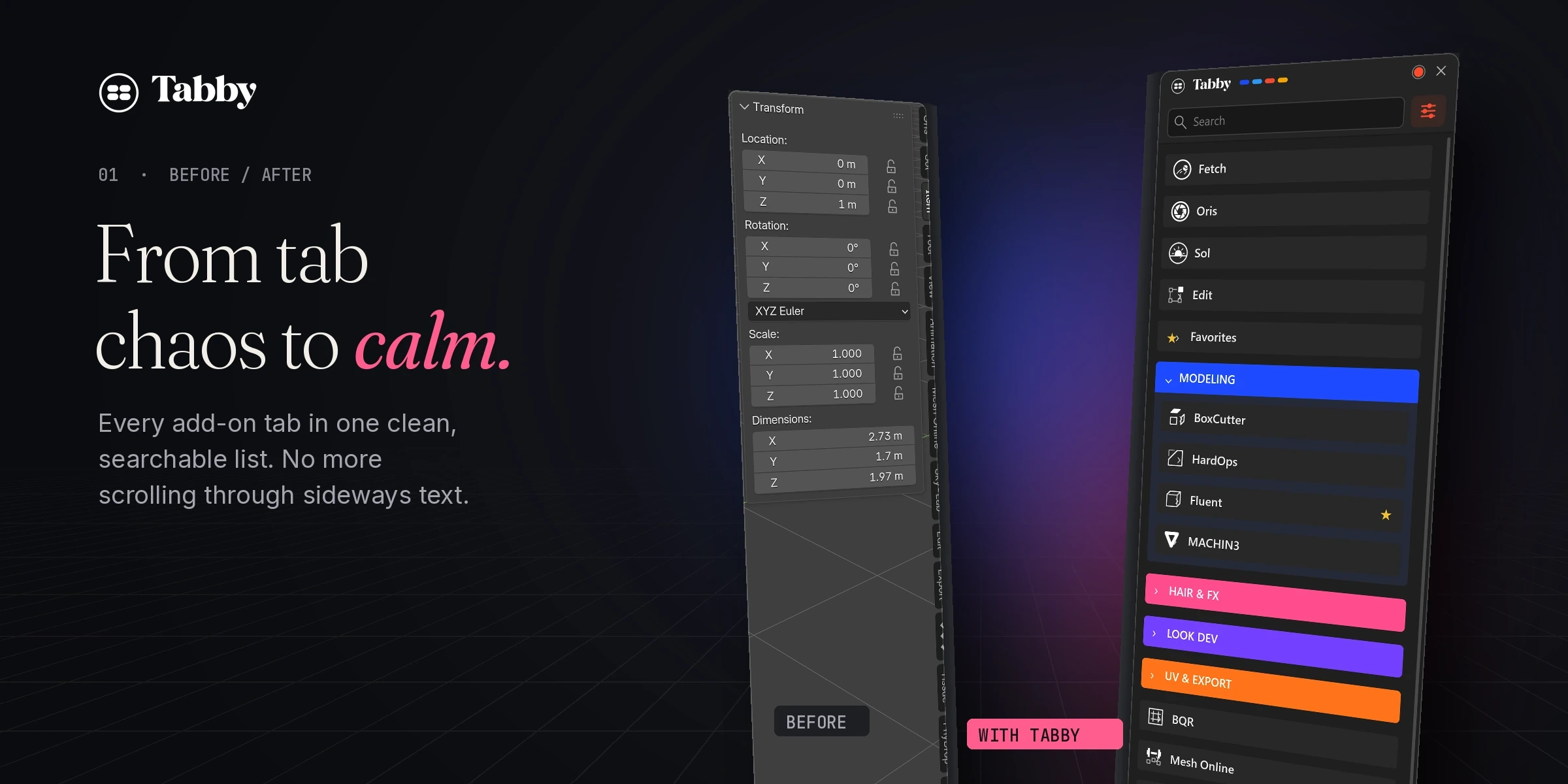
Every add-on tab from Blender’s N-panel in one clean, searchable hub. Group it, colour it, dock it, or float it on your second monitor.
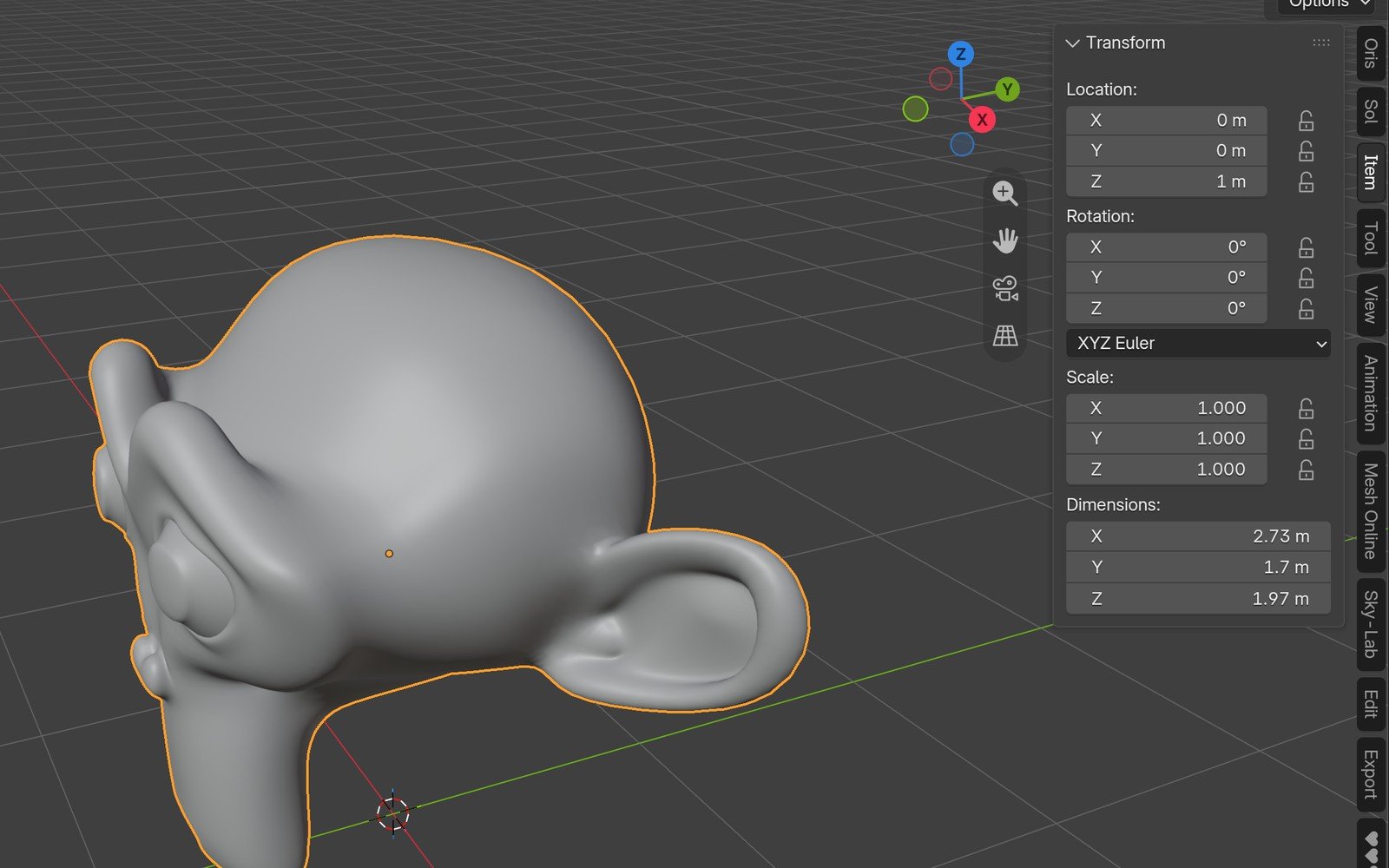
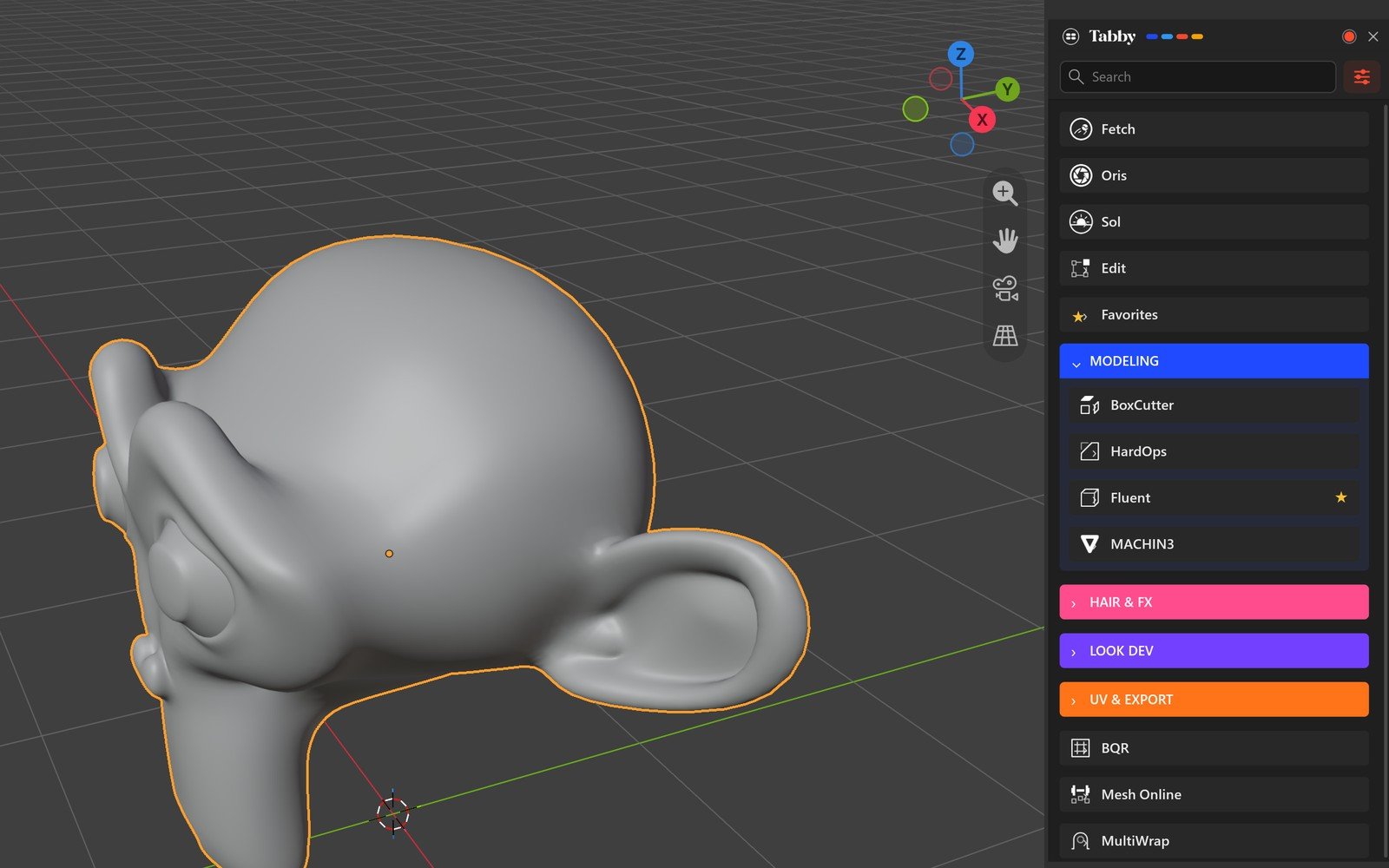 BEFOREWITH TABBY
Open it. Find it. Use it.
A real Blender session: Tabby docked next to the viewport, every add-on one click away, with its controls right there in the list.
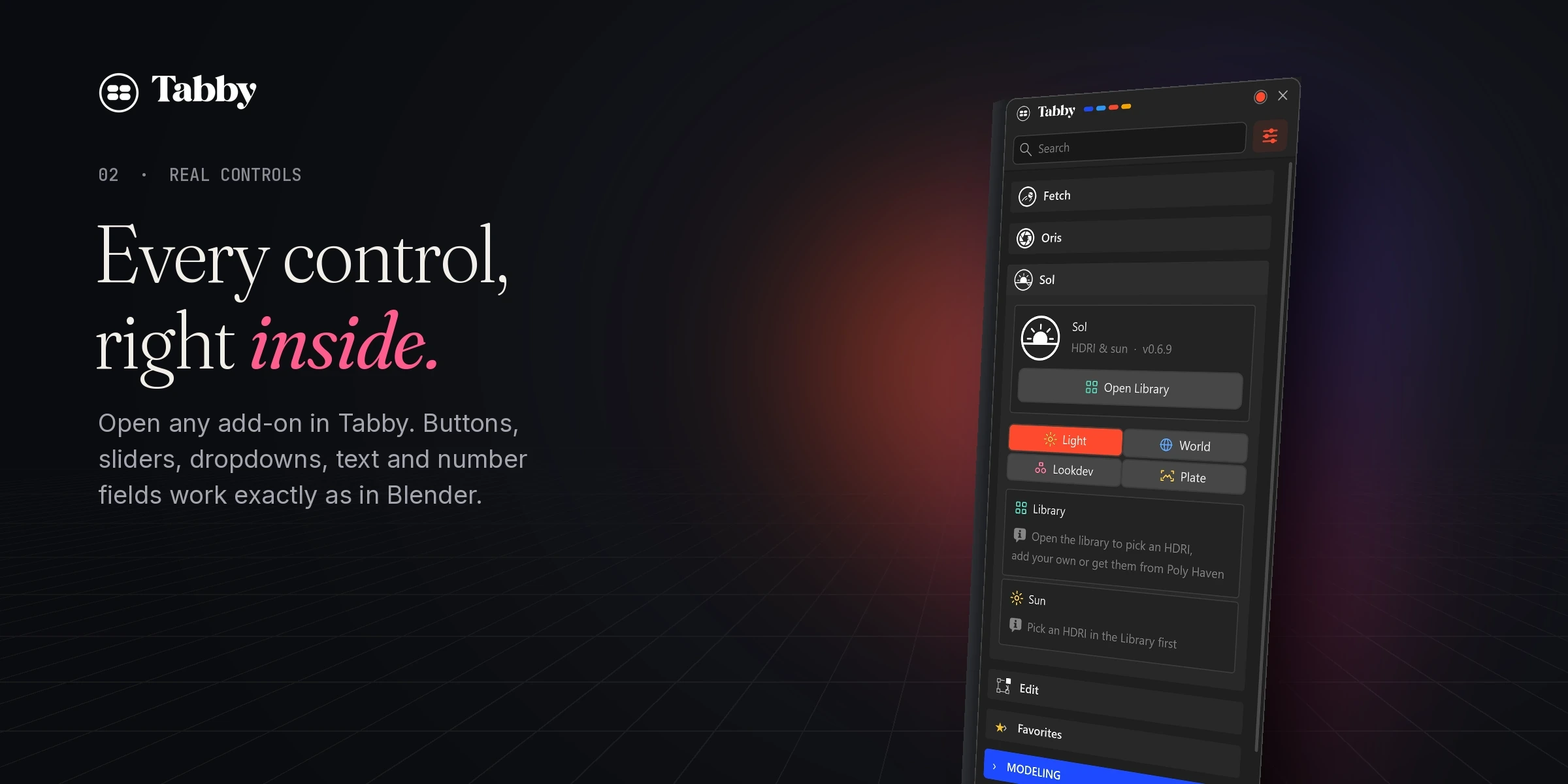
Every control, right inside.
Click a card and the add-on opens in place. Its panels are the real ones, not a copy, so every button and field behaves exactly as it does in the sidebar.
- Buttons, sliders and checkboxes work as usual.
- Dropdowns show a short description of each option.
- Text and number fields with steppers you can drag or type into.
- Colour pickers and icon galleries open right in the list.
Type three letters. Done.
Search runs across every add-on and every panel. No more scrolling up and down a strip of rotated text looking for the one you need.
- Instant as you type.
- Finds panels inside add-ons, not just add-on names.
- Groups open by themselves to show what matched.
Your add-ons, your way.
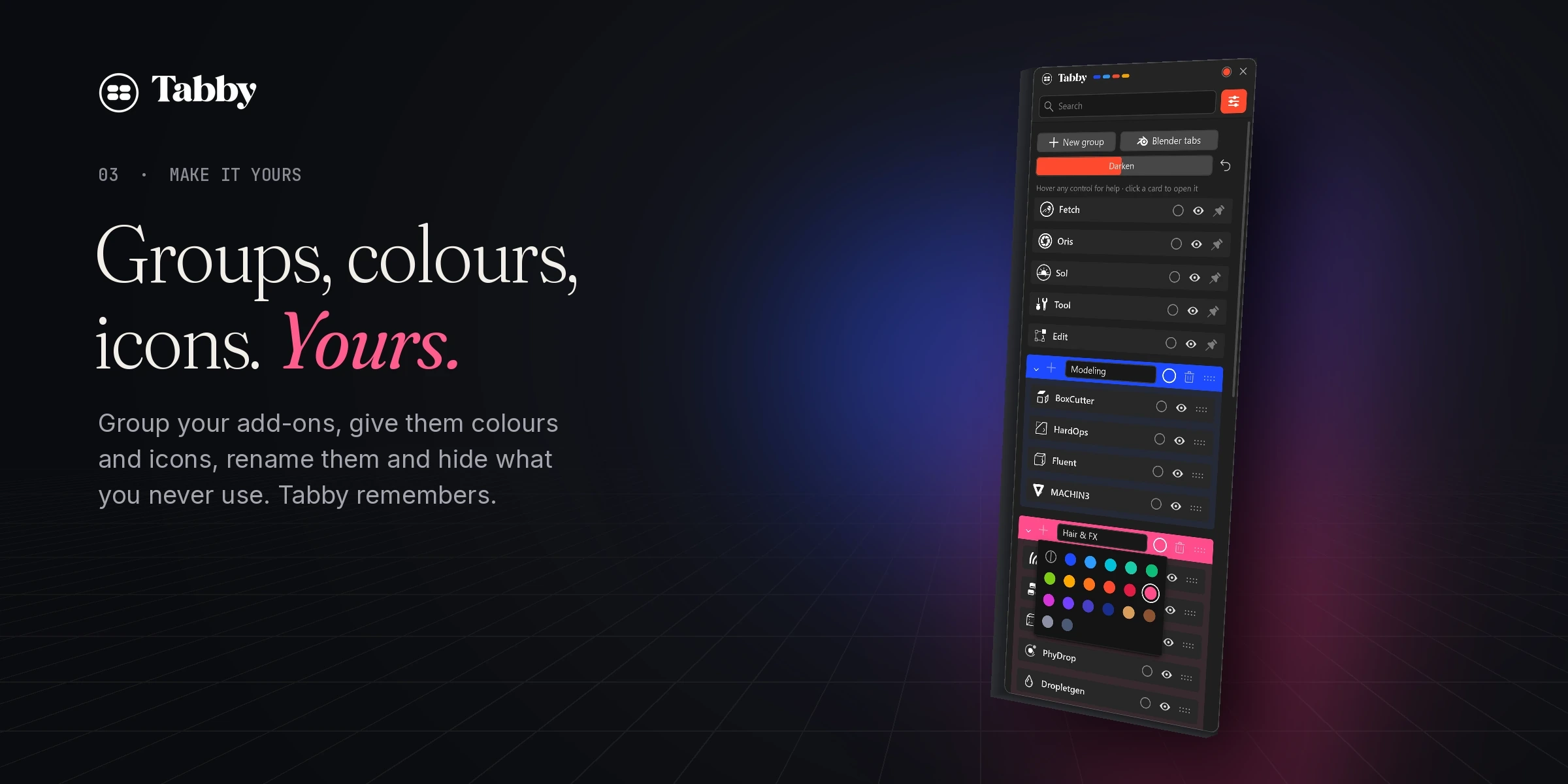
Make groups like Modeling or Hair & FX, drag add-ons into them and drag the groups anywhere. One click folds a group away.
- Groups with their own colour and icon.
- Drag and drop to reorder add-ons and groups.
- Rename anything. One click brings the original name back.
- Hide what you never use. Tabby remembers.
Make it yours.
Pick a colour for any add-on or group from the palette, and an icon from the built-in icon gallery. Every add-on gets a fitting icon by default, so it looks good before you touch anything.
- Colour palette for add-ons and groups.
- Icon gallery with hundreds of Blender icons.
- Hover help on every control while you set it up.
Belongs in Blender. Looks better.
Tabby draws with your Blender theme colours. Choose the accent colour for buttons and highlights, and set the contrast with the Darken slider.
- Theme-aware out of the box.
- Accent colour from cobalt to coral.
- Darken to fine-tune the contrast.
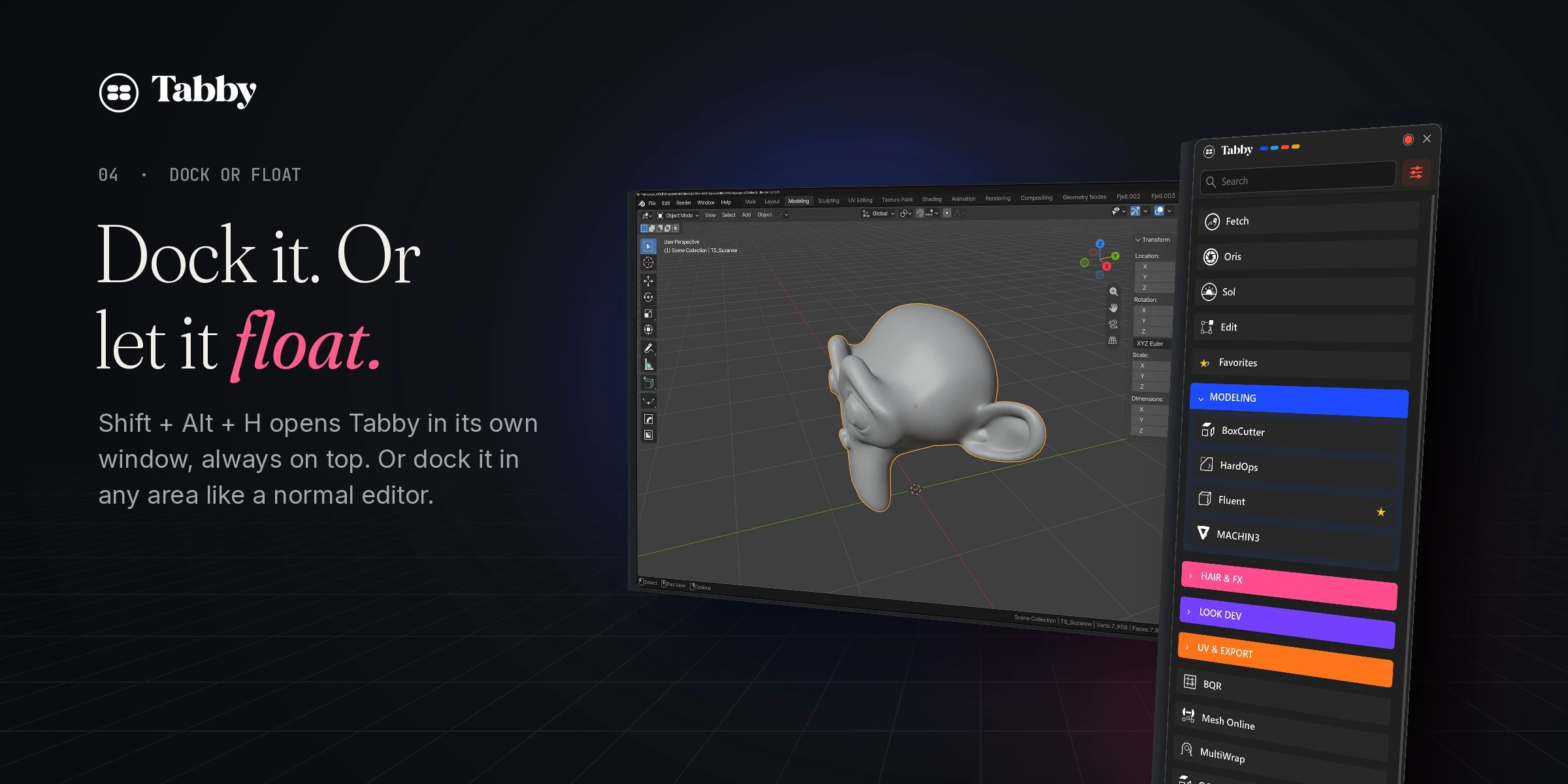
Dock it. Or let it float.
Shift + Alt + H opens Tabby in its own window, always on top. Perfect on a second monitor. Ctrl + Shift + Alt + H docks it in any area, like a normal Blender editor.
Small things. Every day.
The parts you only notice when they are missing.
Favourites
Star the panels you use most and they collect at the top.
Blender tabs
Item, Tool, View and Animation on top, or hidden with one button.
Remembers
Window, dock position and layout survive restarts. Nothing touches your .blend files.
Automatic
Install a new add-on and it shows up in Tabby by itself.
Tabby, up close.
Real captures from Blender 5.2.
One price. All of it.
No editions, no subscription. Buy once and get every 1.x update.
- Every add-on tab in one searchable hub
- Real inline controls, favourites and search
- Groups, colours, icons and renaming
- Dock it or float it, always on top
- All 1.x updates included
Made by a 3D artist, for his own N-panel.
Tabby started because the sideways tab strip annoyed me every single day. Questions or ideas go straight to me at hello@mulk.no.
Tabby recognises other Mulk add-ons, shows their logos at the top, and when Fetch is installed it tells you how many updates are waiting.
Before you install.
- Blender
- 5.0 or newer
- Tested
- Blender 5.2 LTS, Windows
- Install
- Blender extension (.zip)
- Licence
- GPL-3.0-or-later
Which add-ons work with Tabby?
Any add-on that has a tab in the 3D Viewport sidebar (N-panel). New add-ons show up by themselves.
Does Tabby touch my add-ons or .blend files?
No. Tabby only changes where the panels are shown. Its settings live in its own config file, never in your .blend files. Disable Tabby and everything is back to normal.
How do I install it?
Drag the .zip into Blender, or go to Edit › Preferences › Get Extensions › Install from Disk. Open Tabby with Shift + Alt + H and click the settings button next to the search field to start organising.
Are updates included?
Yes. Your purchase includes all 1.x updates.
Where do I get help?
Email hello@mulk.no, and you’ll get an answer from the person who made it.
Check out more add-ons.
Tools I build for my own work as a 3D artist, now available for yours. They all show up at the top of Tabby.
 Fetch · Coming soon
Every update, one click.
Checks all your add-ons and extensions from Superhive, Gumroad and Blender Extensions, and updates them from one place.
 Oris · Coming soon
A real lens for Cycles.
A physical lens camera. Real glass, bokeh, lens dirt, rain on the lens and film response, ray traced in one pass.
 Sol · Coming soon
HDRI and sun, matched.
An HDRI library that places a matching sun light for every HDRI, with lookdev and plate modes built in.