
All your add-on updates, one place.
Fetch checks every extension repository and your Downloads folder, then updates it all with one click. No more digging through store libraries to see what is out of date.
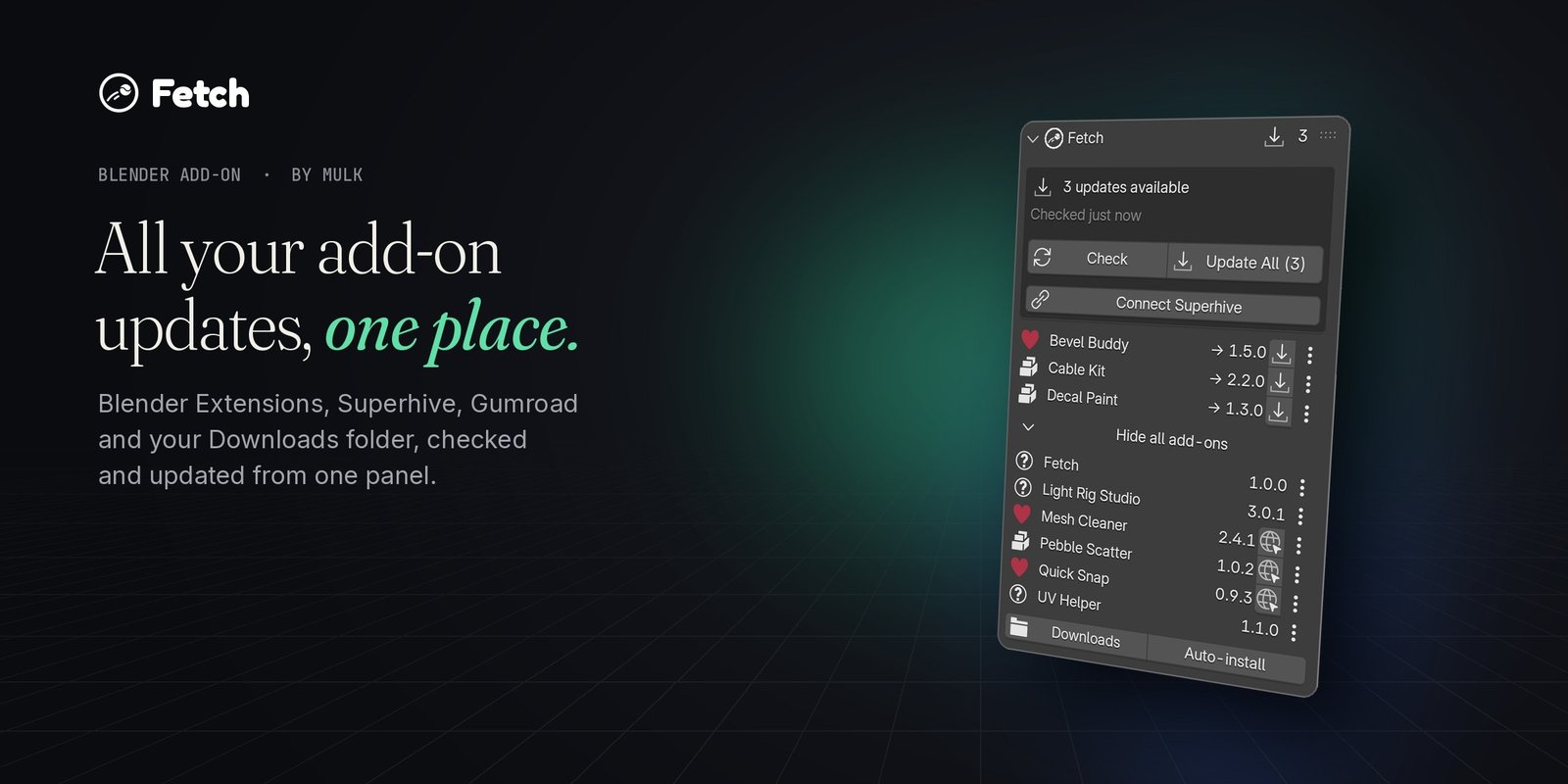
See what is out of date.
Some add-ons update inside Blender. Others come as a zip from Gumroad or Superhive, and you only find out about a new version by accident. Fetch keeps track of all of them in one panel.
- Every repository. extensions.blender.org, Superhive and any other remote repository.
- Your Downloads folder. New zips of add-ons you already have.
- Old and new version side by side, at the top of the list.
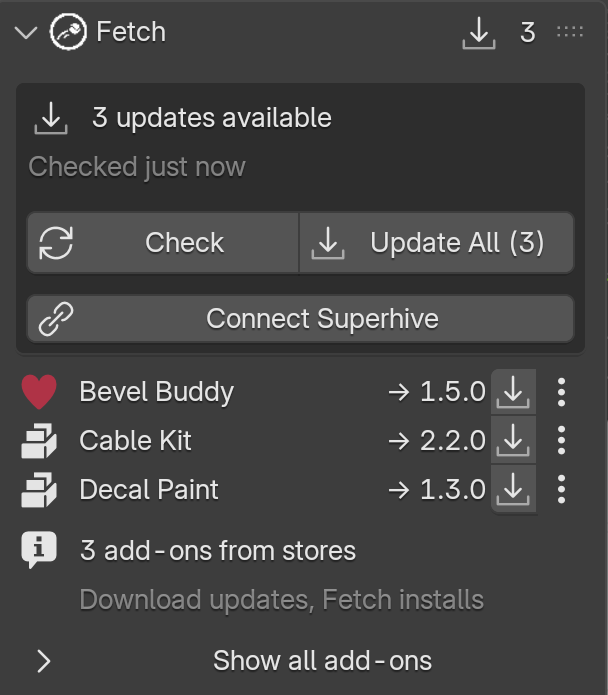
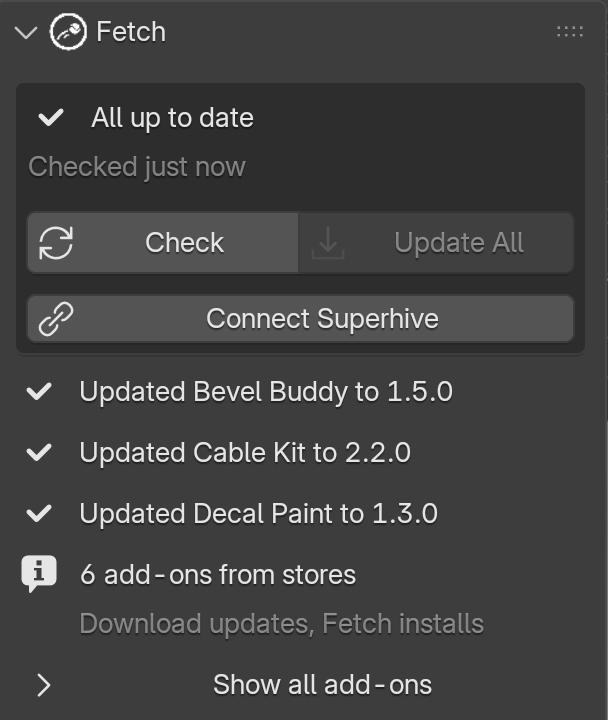
One click. All updated.
Update All installs everything that is waiting. Extensions update from their repositories with Blender’s own extension system, store add-ons from the zip you downloaded.
- Update All in one go.
- Install one with its own button.
- Keeps them enabled. Add-ons that were on stay on.
Download it. Fetch installs it.
Gumroad and most stores have no way for an add-on to update itself. Fetch closes the gap: grab the new zip from your library, and Fetch takes it from there.
Open the store
Every add-on remembers where it came from. One click takes you to the right store page or library.
Download the zip
Save it like you always do. Fetch looks in your Downloads folder, or any folder you pick.
Fetch installs it
The new version shows up as an update. Click Install, check what will change, and confirm.
Everything you have, one list.
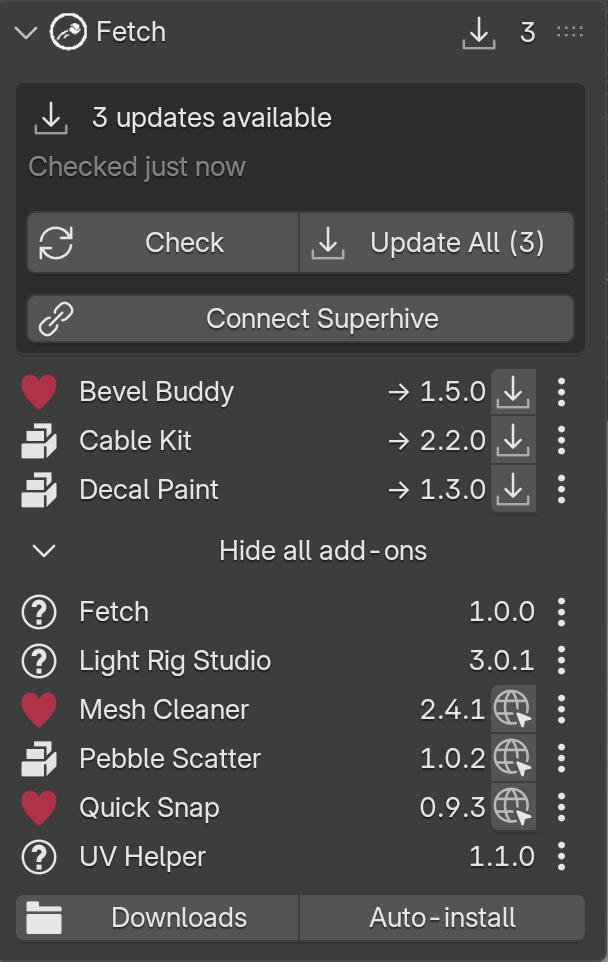
Fetch lists every installed add-on and extension with its version and where it came from. Tell it the source once, and the store page is always one click away.
- Version and source for every add-on.
- Open Store Page for Gumroad, Superhive or any site.
- Downloads right at the bottom.
Superhive updates, inside Blender.
Superhive products marked as Blender Extensions can update right inside Blender. Fetch sets up the repository for you in a few seconds.
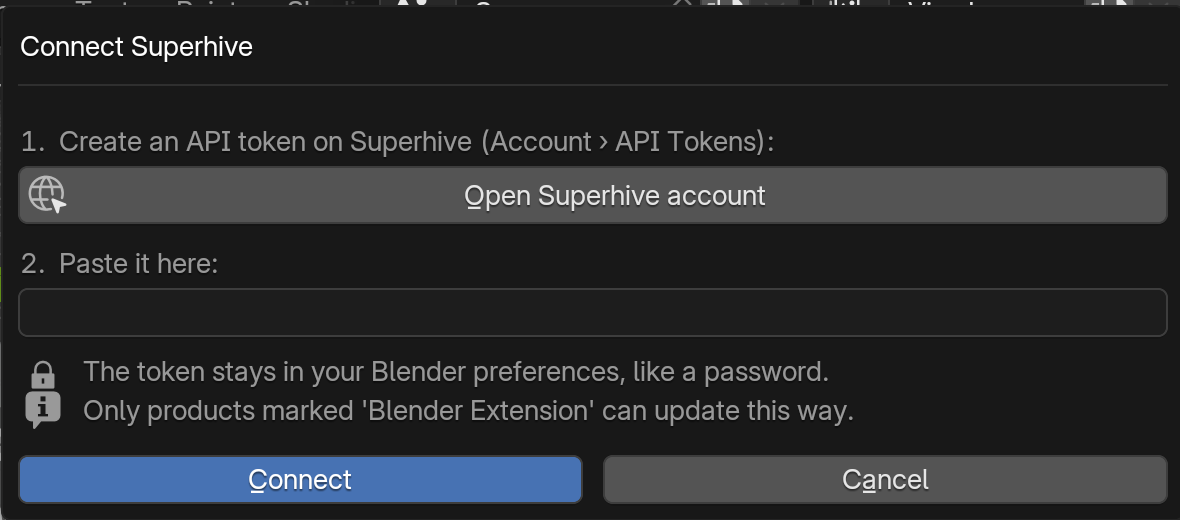
- Create an API token on Superhive (Account › API Tokens).
- Click Connect Superhive in Fetch and paste it.
- Done. Your Superhive extensions now update with Check and Update All.
The token stays in your Blender preferences, like a password.
Checks once. Then it stays out of the way.
No background polling and no pop-ups while you work.
Startup only
One check when Blender starts, or only when you press Check. You decide in the preferences.
Respects your settings
Fetch only goes online when Blender’s online access is turned on.
Your rules
Pick the Downloads folder and how many days back to look. Nothing is installed until you confirm.
Fetch and Tabby, made for each other.
Tabby collects every add-on tab from the N-panel into one clean hub. Install both and Fetch sits at the very top of Tabby, so your updates live right next to your add-ons. See Tabby →
Small price. All of it.
No editions, no subscription. Buy once and get every 1.x update.
- Checks every extension repository
- Watches your Downloads folder
- One-click Update All
- Connect Superhive in seconds
- All 1.x updates included
Built for my own add-on folder first.
I have more add-ons than I can keep track of, from four different stores. Fetch is how I keep them current. Questions or ideas go straight to me at hello@mulk.no.
Before you install.
- Blender
- 5.0 or newer
- Install
- Blender extension (.zip)
- Permissions
- Reads Downloads, checks repositories online
- Licence
- GPL-3.0-or-later
Can Fetch download updates from Gumroad for me?
Gumroad has no way for add-ons to update themselves. Fetch takes you straight to your Gumroad library, and as soon as the new zip lands in your Downloads folder, Fetch installs it.
Which stores does it work with?
Blender Extensions, Superhive, Gumroad and any other website. Extensions update from their repositories, everything else through your Downloads folder.
Does it check for updates all the time?
No. It checks once when Blender starts, and you can turn that off so it only checks when you press Check.
Do I need Tabby?
No. Fetch works on its own in the sidebar. With Tabby installed, it sits at the top of Tabby.
Where do I get help?
Email hello@mulk.no, and you will get an answer from the person who made it.